How to Make Your Own GIFs Using Photos and Free Online Tools
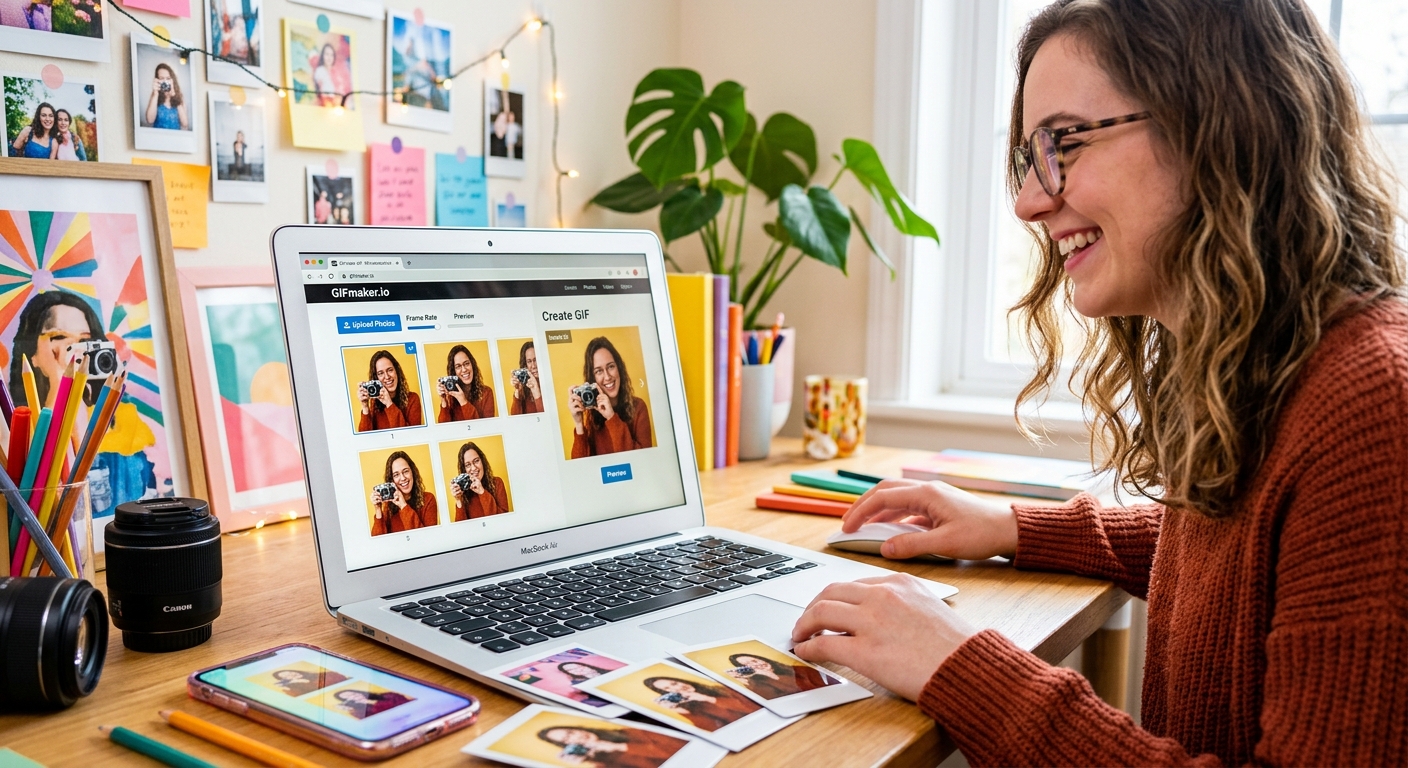
Making your own animated GIF from a photo sounds like something reserved for designers with expensive software and hours to spare. It is not. With a browser tab open and a few spare minutes, you can take a still image and turn it into something that moves, loops, and pulls people in. This guide walks you through the whole process from start to finish, using tools that cost nothing and require no installs.
This guide covers the full process of turning a static photo into a shareable animated GIF using free, browser-based tools. You will learn how to pick the right source image, choose between two popular free tools based on what you need, and export a finished file ready to drop into any message, post, or page. No design experience needed, no account required to start.
Choosing a Photo That Actually Works for Animation
Not every photo turns into a great GIF. The best starting images have a clear subject, strong contrast, and enough visual interest to hold attention through a loop. A blurry or poorly lit shot will look worse once animated because movement draws the eye straight to its weaknesses.
Look for images with a defined foreground, a relatively simple background, and strong shapes or colors. If you do not have a photo you feel good about, picking up a clean, high-resolution image from a reputable stock photo resource gives you a sharp, copyright-clear starting point. That removes one obstacle before you even begin.
Think about what kind of motion fits the image before you start. A wide landscape lends itself to a slow zoom or pan. A portrait works with a subtle shimmer or fade effect. A product shot can loop with a gentle pulse. The image and the motion should feel like they belong to each other.
Two Free Tools That Get the Job Done
You have many options for making GIFs in a browser, but two tools stand out for being genuinely free and functional without requiring an account: Ezgif and Canva. Each takes a different approach, and the right pick depends on what you want to make.
Ezgif is a no-frills browser-based editor built specifically for GIF work. You upload your files, tweak the settings, and export. It is fast, direct, and uncluttered. Canva is a full design platform with animation features layered in, giving you templates, motion presets, and a visual drag-and-drop canvas to build on.
Ezgif vs Canva: Side-by-Side Feature Breakdown
| Feature | Ezgif | Canva |
|---|---|---|
| Account needed | No | Optional (free plan available) |
| Best suited for | Frame-by-frame control and file conversion | Styled animations and branded GIFs |
| Upload limit (free) | Up to 100 MB | Up to 25 MB per file |
| Animation style | Manual (frame timing, speed control) | Preset motion effects |
| Learning curve | Moderate | Low |
| Export formats | GIF, MP4, WebP | GIF, MP4, PNG |
Creating a GIF from Photos Using Ezgif
Ezgif works by stitching multiple images together into frames and playing them in sequence. To create a motion effect from a single still photo, you will want to export two or three slightly different crops or zoom levels of that photo first, then upload them as separate frames. That creates the illusion of movement even from one image.
Head to Ezgif and select the GIF Maker from the top navigation. Upload your images in the order you want them to play. Once they are loaded, you will see controls for frame delay, loop count, and frame order. Delay time is the setting that matters most. A delay of around 8 to 10 centiseconds creates a smooth, fast loop. Pushing it to 50 or higher gives you a slower, more deliberate pace. Adjust it until the loop feels natural.
- Upload your frames in the exact order you want them to appear
- Set delay per frame to control how fast or slow the animation plays
- Use the Optimize tab after generating to cut file size without losing much quality
- Preview the GIF in your browser before committing to a download
- Use the Crop tool to remove distracting edges or reframe the composition
One thing to keep in mind: the GIF format handles color differently from standard photo files. As animated image format documentation from MDN Web Docs explains, GIF files are limited to 256 colors per frame, which means photo-realistic images with lots of color gradients can look slightly softer or grainy after conversion. Using images with strong contrast and simpler color palettes produces noticeably cleaner results.
Once you are happy with the preview, click Make GIF and download your file. The entire process takes about five minutes once your source images are prepared.
Building a GIF in Canva When You Want It to Look Polished
Canva is the better pick if you want a great-looking result without spending time manually adjusting individual frames. Its animation presets apply directly to your photo and give you a polished output in just a few clicks.
Open Canva and start a new design. Choose a format that fits where you plan to share the GIF. Instagram post dimensions, square formats, or custom sizes all work. Upload your photo to the canvas and position it the way you want. Then click the Animate button at the top of the editor. A panel will appear with motion options like Rise, Fade, Pan, and Breathe. Click through them to preview each one directly on your image.
- Pick a motion style from the Animate panel that fits your image's mood
- Add a text overlay, shape, or color block on top for extra personality
- Use the Duration slider to control how long the animation runs before looping
- Click Share, then Download, and select GIF as the file format
- Check the exported file size before posting and resize if it is too heavy for your platform
Canva's free plan includes everything you need to do this well. You do not need a paid subscription to export a GIF. The main limitation is that some premium templates and design elements require a Pro account, but the core animation tools are fully accessible for free.
If you want to push things further, Canva also lets you layer multiple photos on the canvas using transparent overlays or background removal. That opens up more creative possibilities without needing to learn any new tools.
Reducing File Size Before You Post
GIFs can get heavy fast. A ten-second animated photo at full resolution can easily hit 5 MB or more. That is too large for most messaging apps and many social media platforms, which will either compress it badly or refuse to play it at all.
Ezgif's Optimize tab is the fastest fix. Upload your finished GIF there and apply lossy compression at around 35 to 45 percent. That typically cuts the file size in half while keeping the animation looking sharp enough for screens. If you need to go smaller, reducing the color count in the palette or scaling the image dimensions down slightly will get you there.
A general target to aim for: under 2 MB for messaging apps like iMessage, WhatsApp, and Messenger, and under 8 MB for social media feeds. Staying in that range means your GIF loads reliably and plays smoothly wherever you share it.
From Still to Animated: The Payoff Is Genuinely Real
There is something satisfying about turning a photo you found or took into a moving image that people actually react to. It changes how a moment lands. A great photo is easy to scroll past. A well-made GIF holds attention because it does something unexpected.
Both Ezgif and Canva make this possible in a single sitting, without spending money or learning complicated software. Ezgif suits anyone who wants precise control over timing and frames. Canva fits people who want clean, styled results with minimal technical effort. Neither one costs a thing to get started.
The gap between looking at GIFs and actually making them is much smaller than most people assume. Pick a photo, open a browser tab, and see what motion does to it. Your first attempt will teach you more than any amount of reading, and the next one will be better for it.